To update your account email, you need access to both your current and new email inboxes for verification.
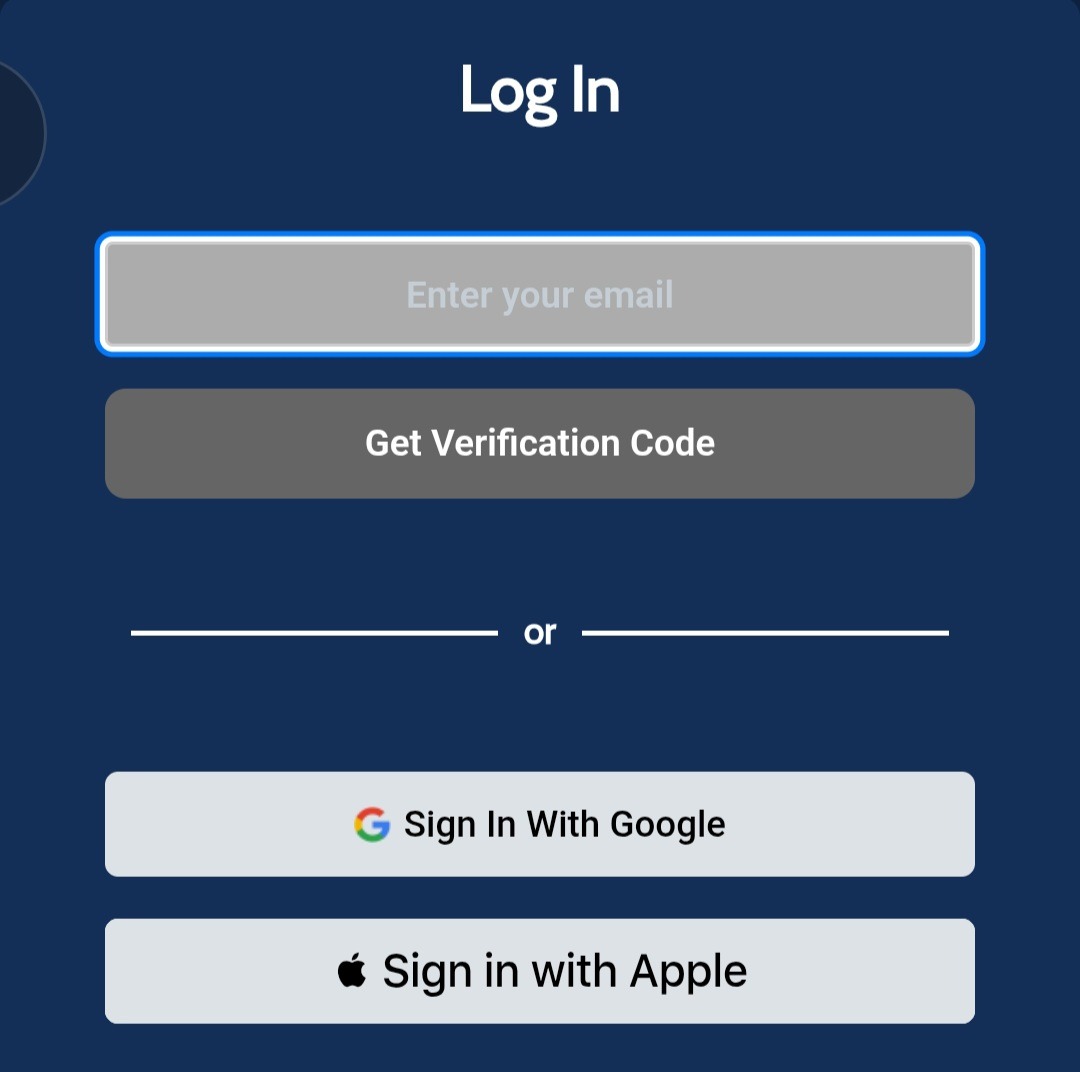
Log In: Access your account using your existing credentials.
Go to Settings: Navigate to Account > Account Settings.
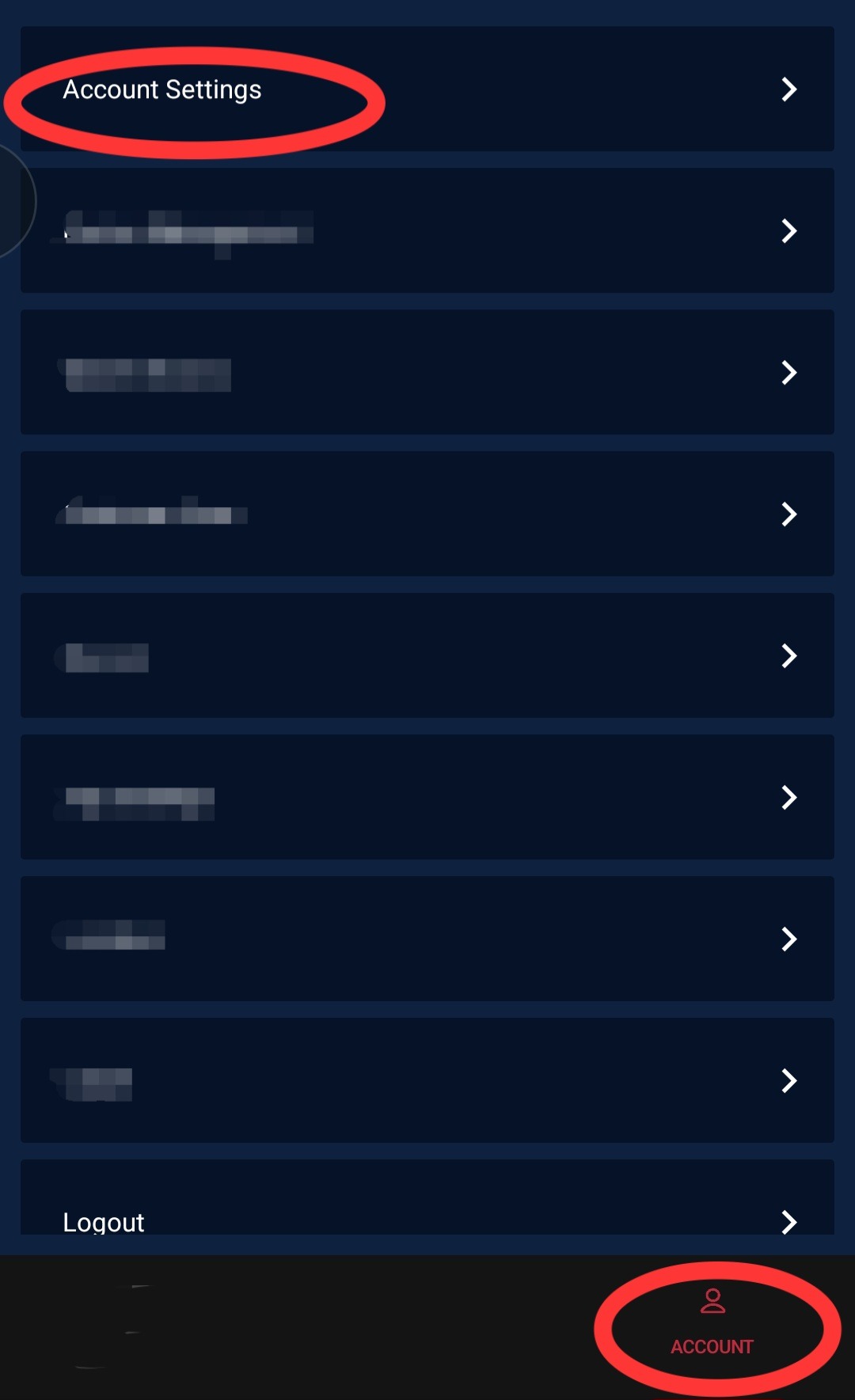
Start Change: Find your current email and click the Edit icon (or pencil).
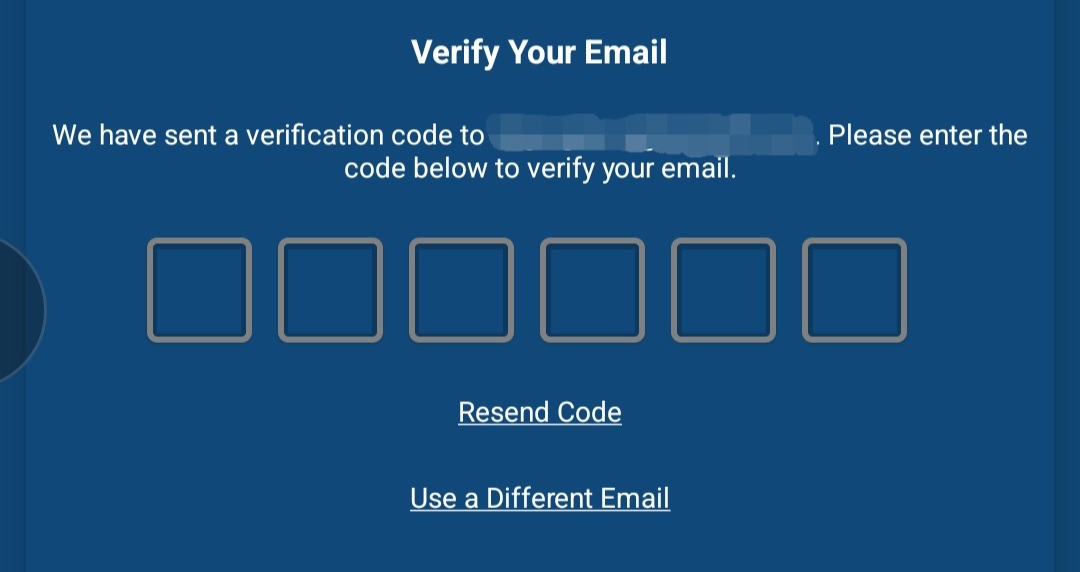
Select Get OTP (One-Time Password) to verify your identity. A 6-digit code will be sent to your current email.


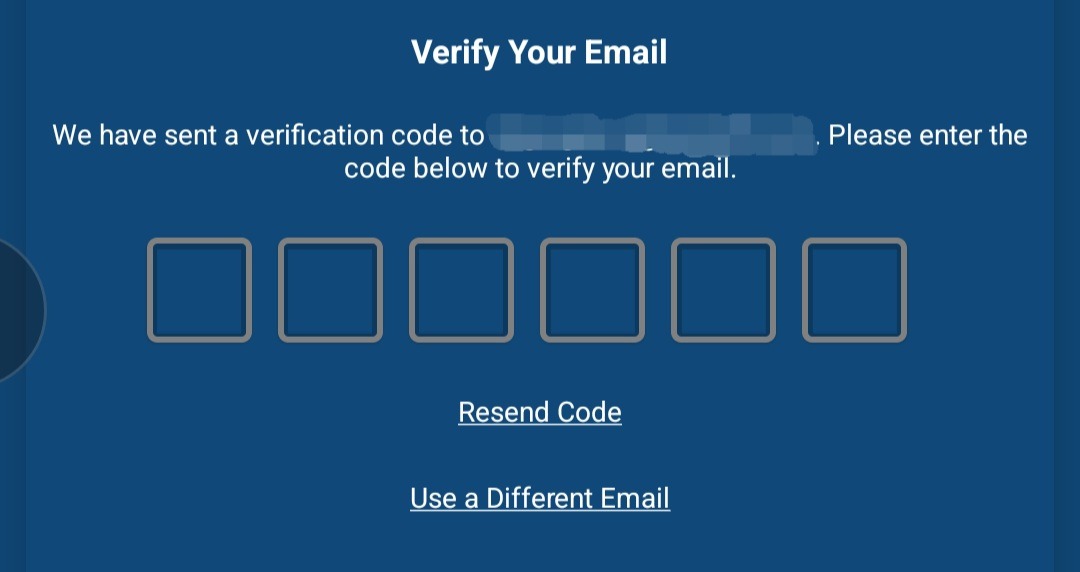
Verify Current Email: Enter the code received in your current inbox into the account interface.
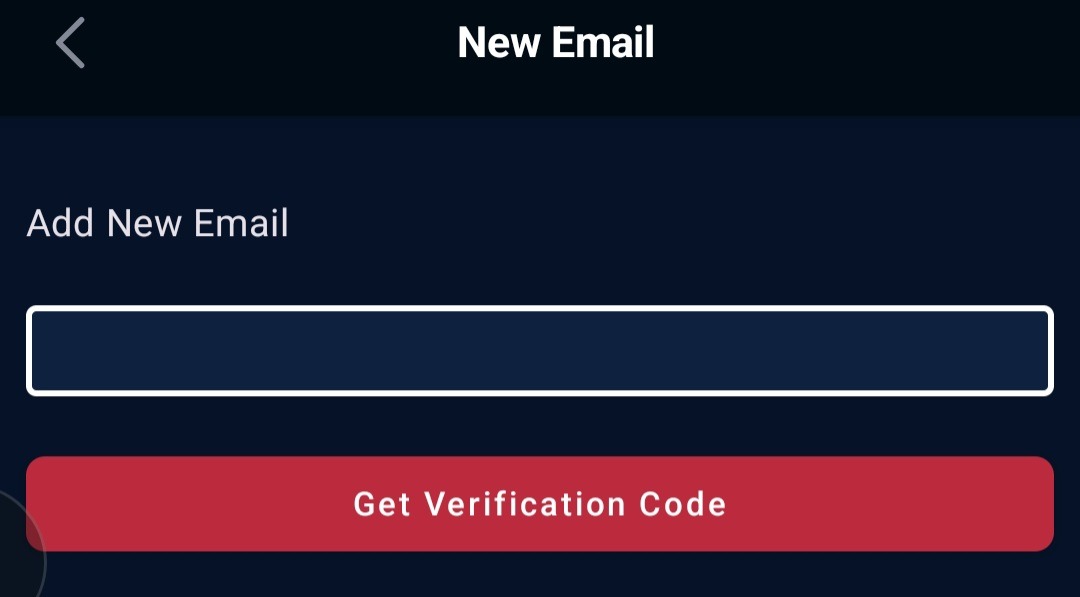
Enter New Email: Input your new email address and click Get verification code. A second 6-digit code will be sent to your new email.
Confirm New Email: Retrieve and enter the code from your new inbox to validate the address.
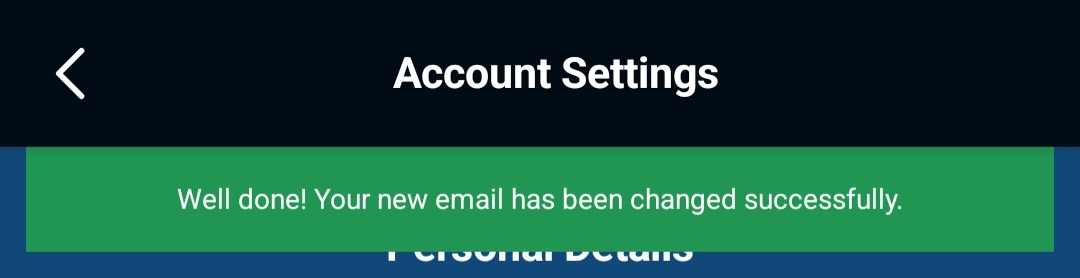
Confirmation: A success message will confirm the update, and you will be redirected to Settings.
Important: Use your new email address for all future logins, along with your existing password. Contact customer support if you have issues.
Need Assistance?
If you have trouble updating your personal information, please contact our dedicated support team. To ensure your account is updated, you will need to provide both the old and new email addresses.
Was this article helpful?
That’s Great!
Thank you for your feedback
Sorry! We couldn't be helpful
Thank you for your feedback
Feedback sent
We appreciate your effort and will try to fix the article